See Lakona in Action with Agar
Agar is a small, playable Unity game that shows what a Lakona project looks like after it grows beyond a hello-world example. You can log in as a guest, enter matchmaking, play a realtime battle, and inspect the server code behind it.
This article follows the same path as the project: start small, split the server roles, create the complete cluster, then deploy and observe the game.
One game, two environments
Play Agar on your workstation first, then use the same project to explore a distributed cluster and its observability stack.
Start
Bring up a local server.
Play
Connect the Unity client.
Cluster
Create the nine-node environment.
Operate
Deploy and observe the game.
Before you start
For the local game, prepare:
- A checkout of the Lakona repository.
- Docker Desktop with the Docker engine running.
- PowerShell 7.
server-ctl.ps1does not target Windows PowerShell 5.1. - Unity 2022 LTS if you want to run the client.
The nine-node local cluster additionally uses Vagrant and VirtualBox. Reserve at least 24 GiB of physical memory; the VMs use about 17 GiB before Windows, Docker, Unity, and other tools are counted.
1. Start Agar locally
Open a PowerShell 7 terminal at the sample folder:
cd path\to\Lakona\samples\Game.Unity.AgarStart a single-node environment for the quickest first run:
pwsh -NoProfile -File .\server-ctl.ps1 start -Topology singleThe script builds the Agar images, starts PostgreSQL, Redis, and the game server, then waits for the server to report ready. When it finishes, the client-facing endpoints are:
| Endpoint | Address | Purpose |
|---|---|---|
| Gateway | ws://127.0.0.1:20000/ws | Login, matchmaking, and normal RPC calls |
| Battle | udp://127.0.0.1:20001 | Realtime battle traffic |
| Operations | http://127.0.0.1:21000 | Local operations and readiness checks |
Once the single-node game works, start the default three-node topology:
pwsh -NoProfile -File .\server-ctl.ps1 startThis starts data-1, gateway-1, and
battle-1, alongside PostgreSQL and Redis. The client still uses
the same gateway and battle ports, but the application responsibilities are
now separated across three Lakona nodes.
Inspect or stop the environment with the same script:
pwsh -NoProfile -File .\server-ctl.ps1 status
pwsh -NoProfile -File .\server-ctl.ps1 logs -NoFollow
pwsh -NoProfile -File .\server-ctl.ps1 stop
Starting one topology stops the other first, so switching between
single and the default three-node layout does not leave both
trying to use the same ports.
2. Play Agar in Unity
Leave the server running and open this folder in Unity 2022 LTS:
samples/Game.Unity.Agar/Client
Open Assets/Scenes/Gameplay.unity, press Play, and choose:
- Choose Multiplayer.
- Choose Guest Login.
- Start matchmaking from the multiplayer lobby.
- When the match starts, use W/A/S/D to move, eat food, and grow.
The client now exercises a complete multiplayer path: it connects to the gateway, creates a temporary account, waits in the matchmaking queue, receives match information, opens the realtime battle connection, and renders the game state.
The mode menu also has a local single-player option. It is useful for looking at the gameplay loop, but it does not use the server; multiplayer is the path that demonstrates Lakona.
3. Create the complete cluster
The three-node Docker topology is enough for a fast local test. The separate lakona-agar-dev-cluster repository adds the machines around it: an Ansible controller, dedicated data services, and a central observability stack.
This guide uses its local Vagrant platform. It creates nine Debian VMs on a private network, so the layout can be recreated without manually configuring nine machines.
Clone the cluster controller:
git clone https://github.com/bruce48x/Lakona-agar-dev-cluster.git
cd .\Lakona-agar-dev-cluster
On Windows, create and initialize the cluster with PowerShell 7:
.\host\manage.ps1 upOn macOS, invoke the same script through PowerShell 7:
pwsh ./host/manage.ps1 upThe first run creates or starts the VMs, configures SSH, initializes Ansible,
and runs a health check. Running up again is safe; it brings the
environment back to the expected state.
The important boundary is this: up creates infrastructure, but it
does not deploy an Agar build. The cluster is ready for a package in the next
step.
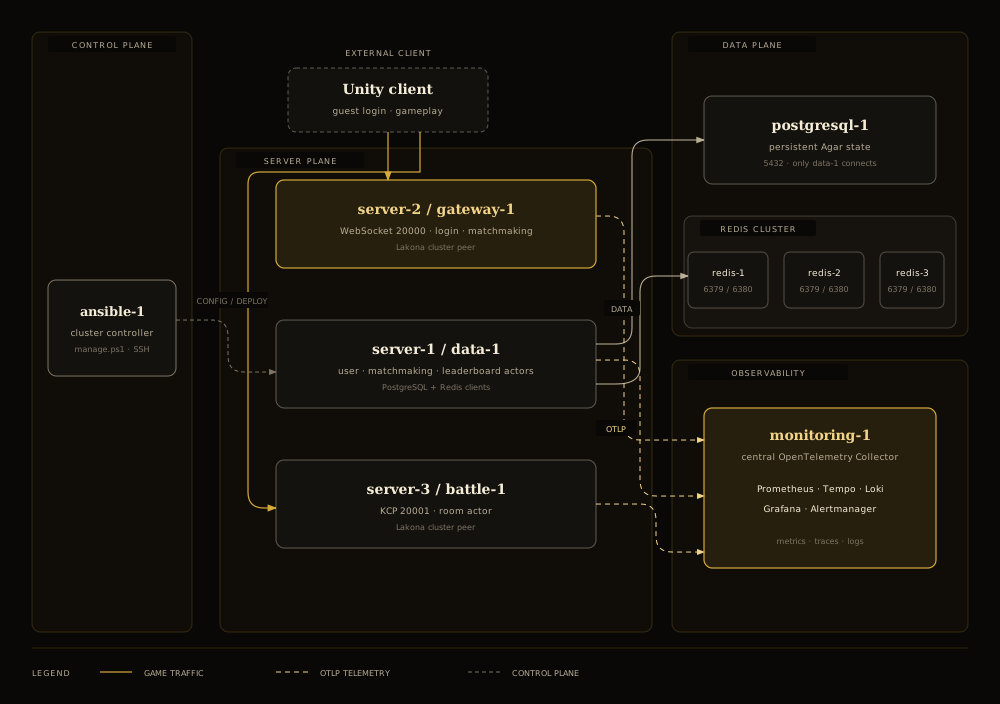
The application nodes handle the game, the dedicated data nodes hold durable
and shared data, and monitoring-1 receives telemetry for the whole
cluster. ansible-1 is the control plane; it configures and operates
the other machines but does not carry game traffic.
4. Deploy an Agar server package
Build a full Linux x64 server package with Lakona Hub or
lakona-tool server pack. For example:
C:\packages\Server.Full-Agar1-20260822-120000Z-linux-x64.zip
Give the package explicitly to the host controller:
.\host\manage.ps1 start -ArtifactPath C:\packages\Server.Full-Agar1-20260822-120000Z-linux-x64.zipThe controller copies the archive to the application nodes, validates it, starts the release, and checks readiness.
The local Vagrant network forwards the game ports to the host:
| Host port | Destination | Purpose |
|---|---|---|
TCP 20000 | server-2:20000 | Gateway WebSocket |
UDP 20001 | server-3:20001 | Battle KCP |
Point the Unity client at 127.0.0.1 while this local cluster is
running. Grafana is available at
http://192.168.56.21:3000.
5. Follow the telemetry
The diagram above shows the telemetry path: each application node sends
metrics, traces, and logs to a node-local Collector, which forwards OTLP data
to monitoring-1. Prometheus, Tempo, and Loki store the three data
types; Grafana is the place to explore them together.
While you test the deployed game, use the host controller for the operational view:
.\host\manage.ps1 vm-status
.\host\manage.ps1 status
.\host\manage.ps1 logs -Limit server-2 -Lines 50 -Boot
When the cluster is no longer needed, stop it without deleting its disks:
.\host\manage.ps1 haltWhen you want to remove the VMs and their PostgreSQL and observability data,
use destroy.
What to inspect in the code
The sample keeps the client, shared rules, and server responsibilities easy to find:
Client/Assets/Scripts/Gameplaycontains the Unity game flow and network session.Shared/Gameplaycontains the gameplay rules and deterministic simulation shared with the client.Server/Appcontains the stable server host and actor state shells.Server/Hotfixcontains the services, matchmaking loop, battle callbacks, and game behavior.server-ctl.ps1manages the local Docker environment.
Agar’s progression is the point: play locally, split the nodes, deploy the same game, and inspect its behavior through telemetry.
For the sample’s full design and test commands, see the Game.Unity.Agar README. For the cluster controller, host operations, and cloud adapter, see the lakona-agar-dev-cluster repository.